
Click in cell E2. This is where the magic happens. We’re going to teach Excel to subtract start from end, then subtract the break. Write this down: =((C2-B2)24)-(D2/60). Don't let the parentheses scare you. They’re just huggy little symbols.
Hit Enter. Nothing happens? Good! It’s ready for data. This formula assumes 9:00 AM is a time, and 30 is just a number for your break. See how that works? Excel is smart, but it needs your help.
Copy that cell down the whole E column. Just grab the tiny square in the bottom-right corner and drag it down to row 10 or 20. Now every row has a built-in calculator. You’re a wizard now.
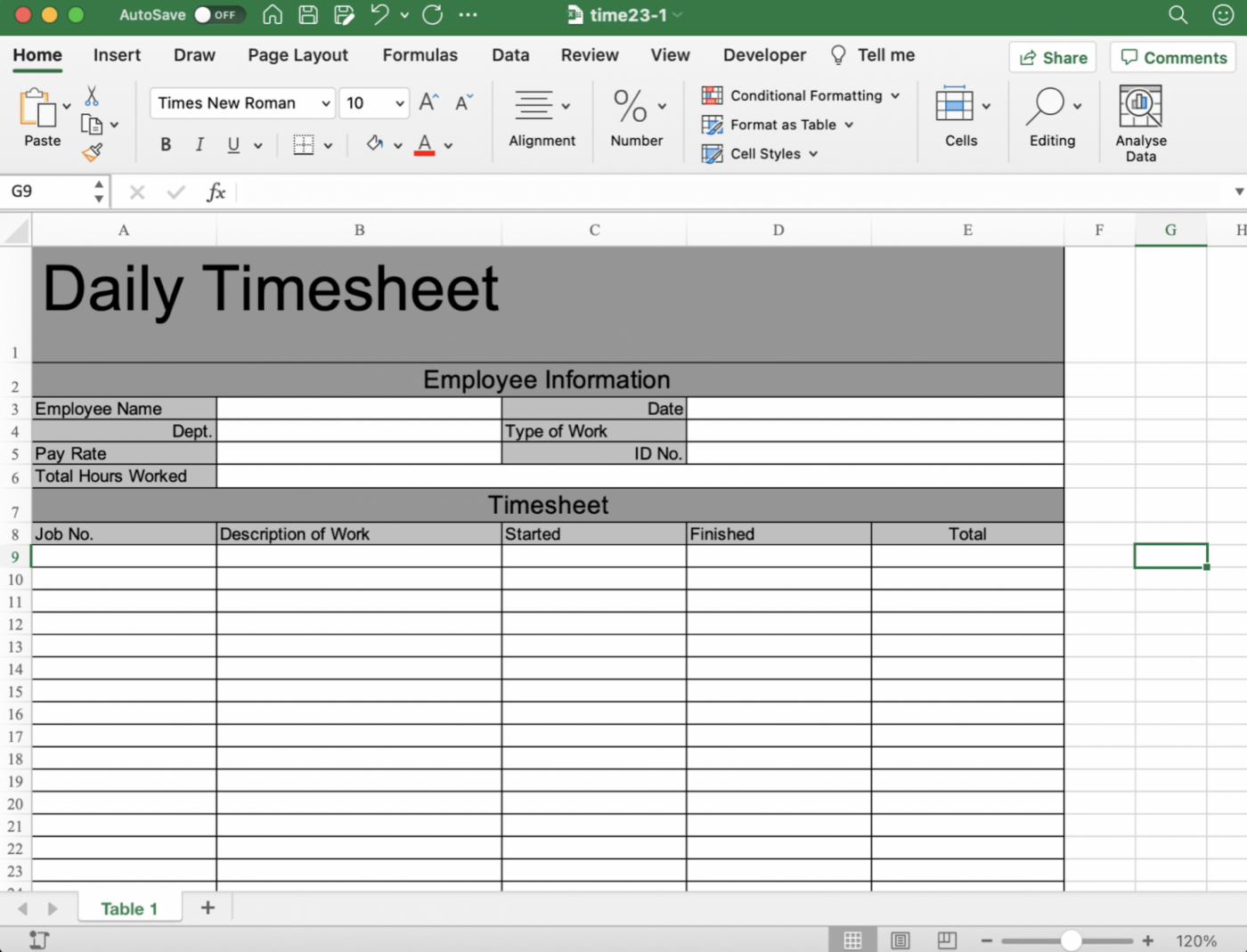 How To Create A Timesheet In Excel
Format Like You Care (But Not Too Much)
Right-click column E. Choose “Format Cells.” Pick Number and set it to 2 decimal places. That way, 8.50 hours looks way more official than 8.49823. You’re not a mad scientist.
For the Date column? Right-click, format, pick a date style you like. I’m a fan of “14-Mar.” Classy, but not trying too hard. Don’t forget time format for columns B and C. Use “1:30 PM”. Your mouse is your friend.

