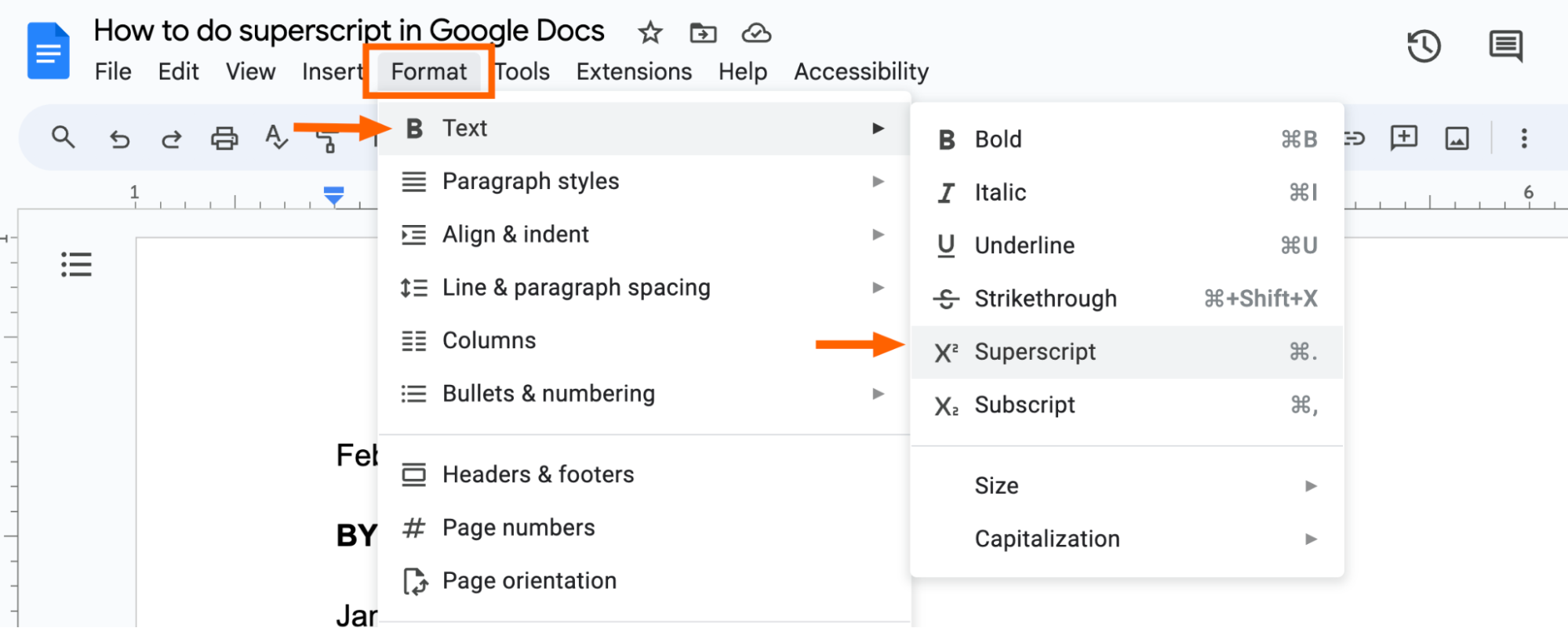
Let’s step back for a second. Why are we obsessing over a tiny floating number? Because it’s the difference between looking like a pro and looking like you typed a whole document in Notepad. Superscript is the spice of text. It makes dates sound official (June 2nd), it makes math look magical (x² = 4), and it makes footnotes seem authoritative.
:max_bytes(150000):strip_icc()/superscript-716ae311b22f4de099e542164b5473c1.jpg) How to Superscript and Subscript in Google Docs
How to Superscript and Subscript in Google Docs
I once wrote an entire grocery list with a superscript “2” next to “bananas” just to feel powerful. Don’t judge me. You know you’ve done something similar. It’s a tiny act of rebellion against the boring, flat world of plain text.
One Last Trick: The Auto-Correct Hack
Okay, I’m going to let you in on a secret that changed my life. If you use certain frequently typed superscripts—like “1st” or “2nd”—you can train Google Docs to do the work for you. Go to Tools → Preferences → Substitutions.
Then type something like “(1st)” in the left box and paste the actual superscript “1st” in the right box. Boom. Every time you type the normal version, Google Docs magically transforms it into the fancy floating version. I do this for all my footnotes. It’s lazy, efficient, and brilliant. My inner slacker is proud.
So next time you’re writing an essay, a label for your homemade kombucha, or just showing off to your friends, remember: Ctrl + Period is your new best friend. Or Format → Text → Superscript, if you’re feeling traditional. Either way, you’ve got this. Now go forth and make those letters float, you magnificent document wrangler.

