First, let’s get one thing straight: deleting is not the same as removing. On Kindle, “delete” wipes the book from Amazon’s servers forever. “Remove” just hides it from your device. It’s like shoving a messy sock under the bed—still there, but out of sight.
You want to tidy up, not start a book apocalypse. So, pick your weapon: the Kindle device itself, the Kindle app, or Amazon’s website. Each has its own secret handshake.
Method 1: From Your Kindle Device (the Classic)
Tap and hold the book’s cover. A menu pops up like a grumpy genie. Select “Remove from Library.” Poof—the book vanishes from your screen.
But here’s the kicker: it’s still in your Amazon cloud. You can download it again anytime. Think of it as purgatory, not hell.
Quirky fact: If you own a Kindle with a touchscreen, you can also swipe to delete. It feels oddly satisfying—like flicking a booger off your finger. Just don’t tell Jeff Bezos I said that.
Method 2: From the Kindle App (on Phone or Tablet)
Open the app. Find the book you hate (or just finished). Tap the three little dots—those are your “options.” They’re like the app’s mood ring.
Choose “Remove from Library.” Boom—gone from your phone, but your other devices still have it. It’s like a digital game of hide-and-seek.
Funny detail: Some books refuse to leave. They’re like that friend who stays after the party’s over. Force close the app and try again. Patience, grasshopper.
Method 3: From Amazon’s Website (the Power Move)
Log in to Amazon on a computer. Go to “Manage Your Content and Devices.” This is the command center—your library’s brain.
Check the boxes next to the books you want to vanish. Click “Delete.” A warning pops up: “Are you sure?” Amazon is very dramatic about this.
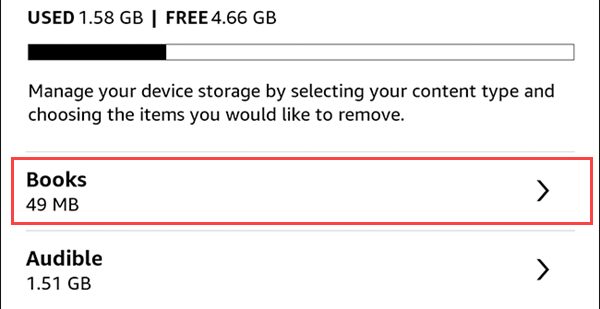 How to Remove Books From a Kindle
Click “Yes, permanently delete.” This is the nuclear option. The book is gone for good. No refunds. No take-backs. You’re a digital assassin now.