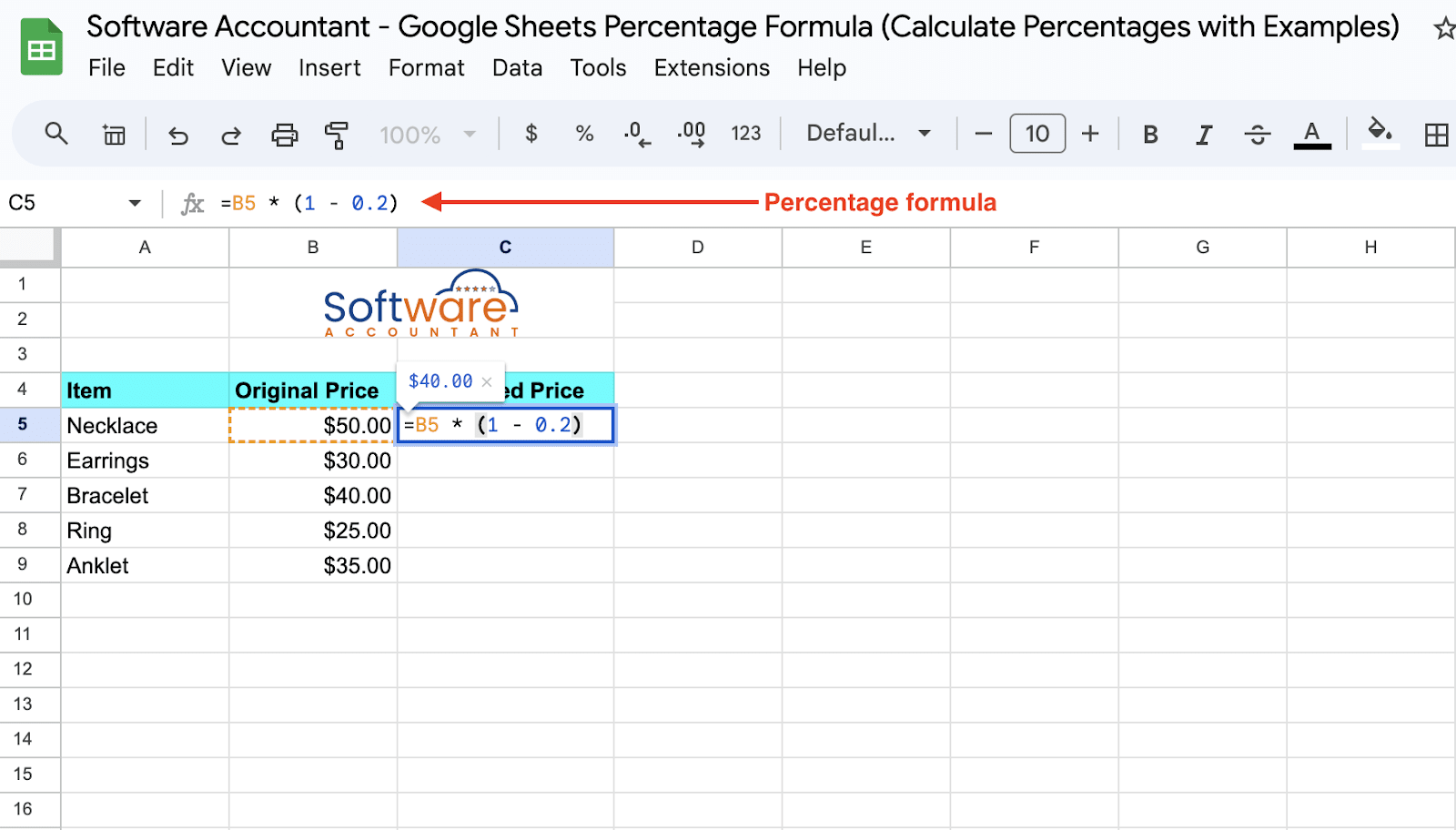
Here’s where most people rage-quit. You copy a percentage formula down a column, and suddenly the values look insane. It’s probably a relative reference problem. If your formula references cell B2 but you drag it down, it changes to B3, B4, and so on. Use $B$2 (with dollar signs) to lock that cell. (I learned this the hard way—my grocery budget cried.)
 How to Calculate Percentage in Google Sheets (4 Ideal Examples)
Another common trap: adding percentages in a column. If you have 10% in one cell and 20% in another, =A1+A2 gives you 0.30, not 30%. Google Sheets stores percentages as decimals under the hood. So always format your result cell as a percentage after the calculation. Or just use =SUM(A1:A2) and format later.
Real-Life Examples You Can Steal
Let’s say you’re tracking sales commission. You sold $500 worth of stuff at a 8% commission rate. =5008% gives you $40. Nice, right? But what if your boss says “commission is 8% of sales, but only if sales exceed $300”? That’s when you use =IF(A1>300, A18%, 0). A little more sass, same logic.
Or maybe you’re splitting a dinner bill with toxic friends who forget to tip. Total bill is $120, and you want to add 18% tip. =120(1+18%) gives you $141.60. Now divide by the number of people. (And maybe write a formula to shame the person who ordered the most expensive wine.)

