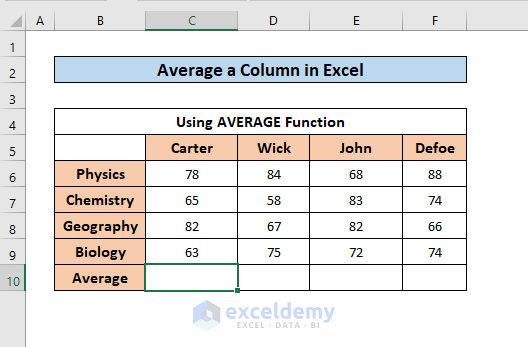
Did you know the AVERAGE function has been in Excel since 1985? That’s older than most people reading this. It’s a vintage rockstar.
Here’s another: if you accidentally include text in your average range, Excel throws a tantrum. It shows #DIV/0! or #VALUE!—basically a digital scream. To fix it, use =AVERAGEA, which treats text as zero. Why? Because Excel is a drama queen.
Fun challenge: average a column of your monthly coffee expenses. Watch the number rise. Then cry. Then realize Excel didn’t make you buy that latte—you did.
Speed Tricks for the Lazy Genius
Don’t want to type the formula? Click the cell below your column, then hit Alt + = on Windows (or Command + Shift + T on Mac). Excel auto-suggests SUM. Just change it to AVERAGE. Two seconds. Boom.
Or look at the bottom-right of your screen. Select a column of numbers, and the status bar shows the average instantly. No formula needed. It’s like Excel whispering a secret.
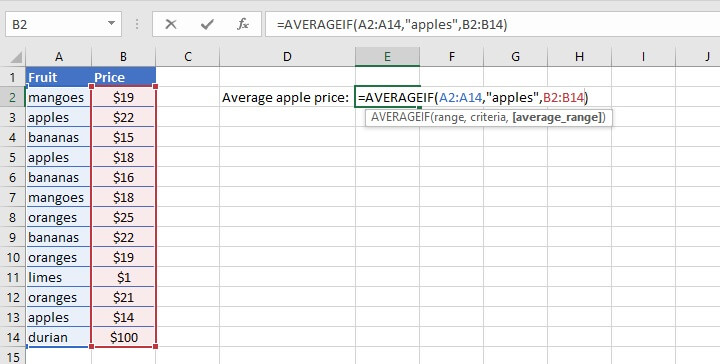 How to Calculate Averages in Excel (7 Simple Ways)
Want to average only certain cells? Use =AVERAGEIF. Example: =AVERAGEIF(B1:B50, ">100") averages everything over 100. It’s like a bouncer for your data—only the VIPs get in.

